
Types of CleverPoint 4 IndicationsTypes of CleverPoint 4 IndicationsTypes of CleverPoint 4 IndicationsTypes of CleverPoint 4 Indications
  • Book a demo
  • CleverLab
  • Stressonika
    • Use cases
  • Docs
  • Contacts
  • EN
  • PL
✕

CleverPoint 4 User Manual

16
  • Introduction
    • Customer Support
    • Regulatory Compliance
    • Warranty and Copyright
  • Product Information
    • Product information
    • Technical specifications
    • Application compatibility
    • Safety precautions
    • Maintenance
  • Getting Started
    • Kit contains
    • Equipment Check
    • Types of CleverPoint 4 Indications
    • Charging your CleverPoint 4
    • Turning CleverPoint 4 on/off
    • First time Wi-Fi setup
    • Connecting CleverMask to the VR Headset
    • Connecting the ECG cable to CleverPoint 4

Stressonika - Guide for Working with raw ECG data

20
  • Introduction
  • Chapter 1. General points.
    • General points
  • Chapter 2. Cardio domain
    • Cardio domain
    • Sector. 1
    • Sector. 2
    • Sector. 3
    • Sector 4
    • Sector 5
    • Sector 6
    • Sector 7
    • Sector 8
  • Chapter 3. Cardio domain: examples
    • Cardio domain: examples
    • 3.1. ECG recording quality
    • 3.2. Preparing the “Cardio domain” page for consultation
    • 3.3 Viewing the “Cardio domain” page during consultation (Example 1)
    • 3.4 . Viewing the “Cardio domain” page during consultation (Example 2)
    • 3.5. Viewing the “Cardio domain” page during consultation (Example 3)
    • 3.6 . Viewing the “Cardio domain” page during consultation (Example 4)
    • 3.7. Viewing the “Cardio domain” page during consultation (Example 5)
    • 3.8. The “Cardio domain” page. Conclusion.

CleverPoint View Data v2.15 User Guide

55
  • Introduction
    • Introduction
  • 0. Fundamentals of Electrophysiology for Beginners
    • 0.1. What Are Physiological Signals?
    • 0.2. Autonomic Nervous System (ANS)
    • 0.3. Emotions and the Brain
    • 0.4. Electrodes and Their Placement in the CleverPoint Setup
  • 1. General Principles of Signal Processing
    • 1.1. Basic Transformations
    • 1.2. Marking and Trim
    • 1.3. CAR (Common Average Reference)
    • 1.4. Denoise (Blink Artifact Suppression)
    • 1.5. Normalize
    • 1.6. IMF (Empirical Mode Decomposition)
    • 1.7. Filtering
    • 1.8. Power vs Amplitude
    • 1.9. Epoch
  • 2. “Summary” Interface
    • 2.1. Purpose
    • 2.2. Controls
    • 2.3. Graphs
    • 2.4. Data Export
  • 3. “Time Domain” Interface
    • 3.1. Purpose
    • 3.2. Controls
    • 3.3. Signal Display
    • 3.4. Signal Transformations
  • 4. “Frequency Domain” Interface
    • 4.1. Purpose
    • 4.2. Interface Structure
    • 4.3. Controls
    • 4.4. Spectral Analysis Methods
    • 4.5. Channel Correlation
    • 4.6. Time Series
  • 5. “Power Domain” Interface
    • 5.1. Purpose
    • 5.2. “Power by sections” Mode
    • 5.3. “Between-channel interactions” Mode
    • 5.4. Frequency-Band Graphs
  • 6. “Coherence” Interface
    • 6.1. Purpose
    • 6.2. Controls
    • 6.3. Coherence Calculation Method
    • 6.4. Display
    • 6.5. Interpretation
    • 6.6. Use in Research
  • 7. “Emotional State” Interface
    • 7.1. Purpose
    • 7.2. Interface Structure
    • 7.3. Controls
    • 7.4. Emotion Calculation Method
    • 7.5. Display
    • 7.6. Section Selection
  • 8. “Cardio Domain” Interface
    • 8.1. Purpose
    • 8.2. Interface Structure
    • 8.3. Controls
    • 8.4. Extraction of RR Intervals
    • 8.5. HRV Parameters
    • 8.6. Visualization
    • 8.7. Data Export
  • 9. Conclusion
    • Conclusion
    • 9.1. Recommendations for Use
    • 9.2. Additional Resources
    • 9.3. Beginner’s Guide
View Categories
  • Home
  • Docs
  • CleverPoint 4 User Manual
  • Getting Started
  • Types of CleverPoint 4 Indications

Types of CleverPoint 4 Indications

2 min read

Color indication is present on the Power button and on the side LED illumination of the device.

Color Indication and Animation of the Power Button

The color of the button and its indication indicates the device’s operating mode:

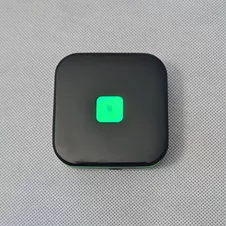
Green Color – Wi-Fi mode

(mode selection is done in the software on the PC)

  • The Power button rapidly flashes green – the device is searching for the previously connected Wi-Fi network.
  • The Power button slowly flashes green – the device is connected to the Wi-Fi network and ready to pair with the software installed on the user’s PC.
  • The Power button is continuously lit with a steady green color – the device is connected to the software installed on the user’s PC.
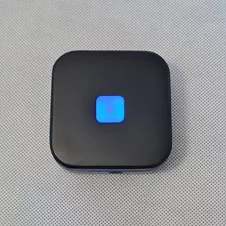
Blue Color – Bluetooth mode

(mode selection is done in the software on the PC)

  • The Power button slowly flashes blue – the device is connected and ready to pair with the software installed on the user’s PC.
  • The Power button is continuously lit with a steady blue color – the device is paired with the software installed on the user’s PC.
Flashes alternately in green and blue – Device Setup Mode

In this mode, you can connect to Wi-Fi network, update the device firmware, and change the device connection mode.

Color Indication of the Side LED Illumination

The color indication of the side LED illumination indicates the battery charge level.

  • Green color – full battery charge >70%
  • Orange color – medium battery level 35%-70%
  • Red color – battery level below 35%.

Attention! If the charge is less than 20%, the side LED illumination will flash red 3 times upon turning on, and the device will shut down.

Animation of the Side LED Illumination

  • Side LED indication with a battery charge color slowly circling around the perimeter – no data transmission, device is in standby mode awaiting data transfer.
  • 4 side LEDs in each corner of the device remain continuously lit – data is being transmitted.
  • When the device is turned on, the side LED indication will rapidly ‘run’ around in a circle.
Updated on 05.02.2024

What are your Feelings

  • Happy
  • Normal
  • Sad

Share This Article :

  • Facebook
  • X
  • LinkedIn
  • Pinterest
Equipment CheckCharging your CleverPoint 4

Our mission

Our mission is to develop products that heighten user awareness of the pivotal role physiology plays in personal and professional endeavors.

We strive to empower our users with the tools to effectively manage stress, prevent burnout, and optimize their well-being.

Contacts

CleverPoint Team - 133, Domaniewska 17/19 Warsawa, Poland, 02-672


+48 578 202 208
[email protected]


All rights reserved. CleverPoint